
Blur+ — A mod that adds a background blur effect to menus and inventory in Minecraft
- Minecraft version the article was tested and written on: 26.1.2
- Supported versions range: 1.15.x – 26.1.2
- Dependencies: Fabric API (for Fabric builds), MidnightLib (for NeoForge)
Minecraft version the article was tested and written on: 26.1.2
Supported versions range: 1.15.x – 26.1.2
Dependencies: Fabric API (for Fabric builds), MidnightLib (for NeoForge)
Blur+ replaces the basic background blur effect under open Minecraft menus with a broader, customizable version — featuring a color layer over the background, smooth fade-in and fade-out animations, and an optional rainbow mode. Vanilla blur, introduced in Java Edition 1.20, looks the same across all screens and is controlled by a single slider in the accessibility menu. This mod provides a different level of control — from intensity and colors to individual toggles for each screen type. It works client-side only and does not affect the server side.
What the effect looks like
When you open any in-game menu — inventory, chest, crafting table — the background smoothly blurs over a set time, and a semi-transparent color layer is applied on top. When closing the menu, the effect fades out just as smoothly. In the vanilla version, this transition is abrupt and simply looks like a change in transparent darkening; here it is a full animation with separate timings for fade in and fade out.
The blur and the color layer animate independently of each other. You can, for example, configure a fast blur fade-in and a slow background darkening — or vice versa. No shader pack is required for this, the effect is drawn using the game's standard renderer.
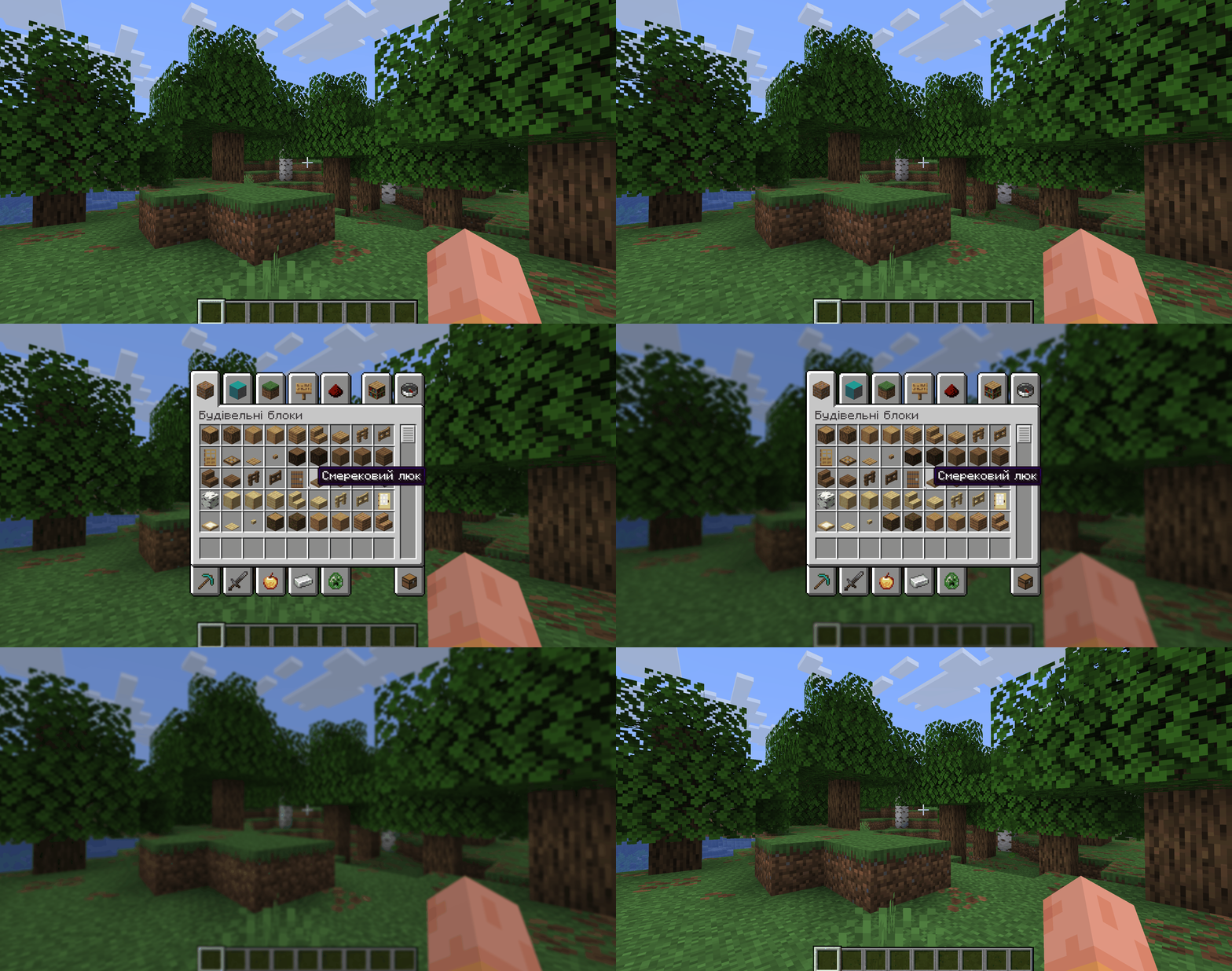
Opening the inventory; a one-second blur fade-in is visible
Which screens receive the effect
By default, the effect is applied to most in-game screens:
- containers: inventory, chests, barrels, furnaces, crafting table, brewing stand, and others
- book screens — viewing a finished book
- sign editing screen
- command block screen
- recipe screens of inventory viewer mods — picked up automatically from version 6.2.0
containers: inventory, chests, barrels, furnaces, crafting table, brewing stand, and others
book screens — viewing a finished book
command block screen
recipe screens of inventory viewer mods — picked up automatically from version 6.2.0
How to configure it
All Blur+ parameters are available for editing through the config/blur.json file — a text JSON created in the config folder upon the first launch of the game with the mod.
Below is a description of what exactly can be changed; the full list of file fields is in the table at the end of the article.
Intensity and animation
The blur strength is controlled in the config file — from a barely noticeable soft haze to a state where the background is almost unreadable. The fade-in and fade-out durations are set separately in milliseconds; a typical range is from instant to about a second. The interpolation curve type can also be changed — the default is flat (FLAT).
Color layer
A two-color gradient in HEX format with separate transparency on a 0–255 scale is drawn over the blurred background. The rotation angle is set in degrees: 0 — top to bottom, 90 — left to right, and so on. If both colors are identical, a solid single-tone fill is produced. The gradient itself can be completely disabled — then only the standard vanilla darkening will remain over the blur.
A separate rainbowMode enables automatic cyclic changing of both colors across the entire spectrum. The start and end points move independently, so the fill flows constantly even on a static screen.
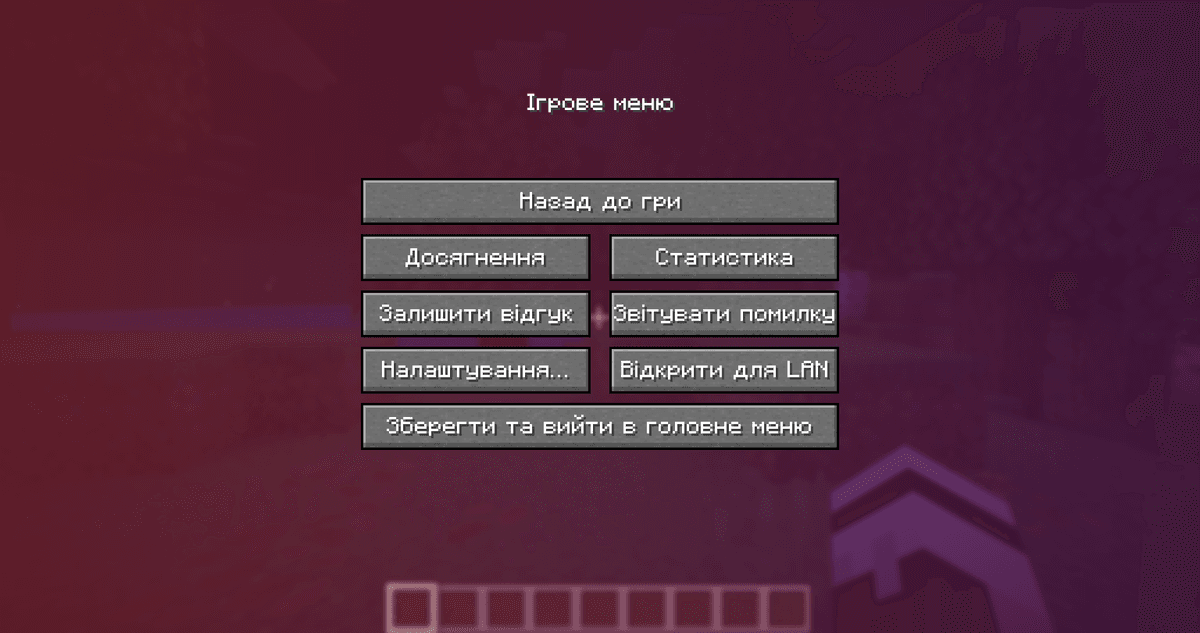
Settings menu with a noticeable gradient mode
Exceptions for specific screens
For cases when you need to enable or disable the effect on a specific GUI, there are two exception lists:
forceEnabledScreens— forcibly enables blur where it doesn't trigger automaticallyforceDisabledScreens— prevents the effect where it would otherwise turn on
forceEnabledScreens — forcibly enables blur where it doesn't trigger automatically
forceDisabledScreens — prevents the effect where it would otherwise turn on
Screen classes are added using their full path. You can peek at the required path via diagnostic mode — once enabled, the full GUI class currently open is displayed in the top left corner of the screen. Copy this string into the respective list, and the effect for that specific menu will change its behavior.
config/blur.json file parameters
Below is the full list of config fields.
| Parameter | Description |
| blurContainers | Blur on container GUIs (inventory, chests, furnaces, etc.) |
| blurBooks | Blur on book screens |
| blurSigns | Blur on sign editing screen |
| blurCommandBlocks | Blur on command block screen |
| blurTitleScreen | Main menu blur before entering a world |
| darkenTitleScreen | Main menu darkening without blur |
| forceEnabledScreens | Screen classes where the effect is forcibly enabled |
| forceDisabledScreens | Screen classes where the effect is always disabled |
| useGradient | Whether to draw a color layer over the blur |
| gradientStart | First gradient color |
| gradientStartAlpha | First color transparency |
| gradientEnd | Second gradient color |
| gradientEndAlpha | Second color transparency |
| gradientRotation | Gradient rotation angle |
| rainbowMode | Cyclic automatic color changing |
| fadeTimeMillis | Effect fade-in duration |
| fadeOutTimeMillis | Effect fade-out duration |
| blurAnimationCurve | Interpolation curve for blur (default FLAT) |
| backgroundAnimationCurve | Interpolation curve for gradient fill (default FLAT) |
| showScreenID | Diagnostic mode — outputs current screen class in the top left corner |
| configVersion | Internal config format version. Not manually editable |
Blur on container GUIs (inventory, chests, furnaces, etc.)
Blur on book screens
Blur on sign editing screen
Blur on command block screen
Main menu blur before entering a world
Main menu darkening without blur
Screen classes where the effect is forcibly enabled
forceDisabledScreens
Screen classes where the effect is always disabled
Whether to draw a color layer over the blur
First gradient color
First color transparency
Second gradient color
Second color transparency
Gradient rotation angle
Cyclic automatic color changing
Effect fade-in duration
Effect fade-out duration
Interpolation curve for blur (default FLAT)
backgroundAnimationCurve
Interpolation curve for gradient fill (default FLAT)
Diagnostic mode — outputs current screen class in the top left corner
Internal config format version. Not manually editable
Conclusion
Blur+ changes how the background under open menus looks in Minecraft. Vanilla darkening is limited to one slider; this mod provides individual control for each screen type, two gradient colors with transparency, two independent animation curves, and a rainbow fill mode. It is suitable for client builds for screenshots, videos, and streams where a uniform interface look is needed, as well as for players who find standard darkening too pale or too dark.
Installation
A typical installation takes about 5 minutes. The flow is the same; only the loader and the matching build differ.
- Install a mod loader (Forge, Fabric or NeoForge) that matches your Minecraft version.
- Download the mod file (.jar) built for that same version.
- Place the .jar into your .minecraft/mods folder.
- Launch Minecraft with the modded profile and check the mod loads in-game.