Borderless Mining — a Mod for Running Minecraft in Borderless Fullscreen Windowed Mode
- Minecraft version this article was tested and written on: 1.20.2. Supported version range: 1.15.2 – 1.20.2
- Mod version: 1.1.9
Minecraft version this article was tested and written on: 1.20.2. Supported version range: 1.15.2 – 1.20.2
Borderless Mining replaces Minecraft's standard fullscreen mode with a borderless window that fills the entire monitor. Vanilla fullscreen minimizes the game when it loses focus — the mod eliminates this: the window stays visible when you switch to a browser, voice chat, or any other program.
What Changes in the Game
The behavior of the F11 key and the fullscreen option in the Video Settings menu is rewritten: instead of true fullscreen, a borderless window expanded to cover the entire screen is enabled. Visually it looks just like real fullscreen, but Alt+Tab, moving the mouse to an adjacent monitor, or bringing other windows on top no longer force Minecraft to minimize.
A separate Borderless Window toggle is added to the same Video Settings menu, letting you quickly switch back to vanilla behavior without restarting the game.
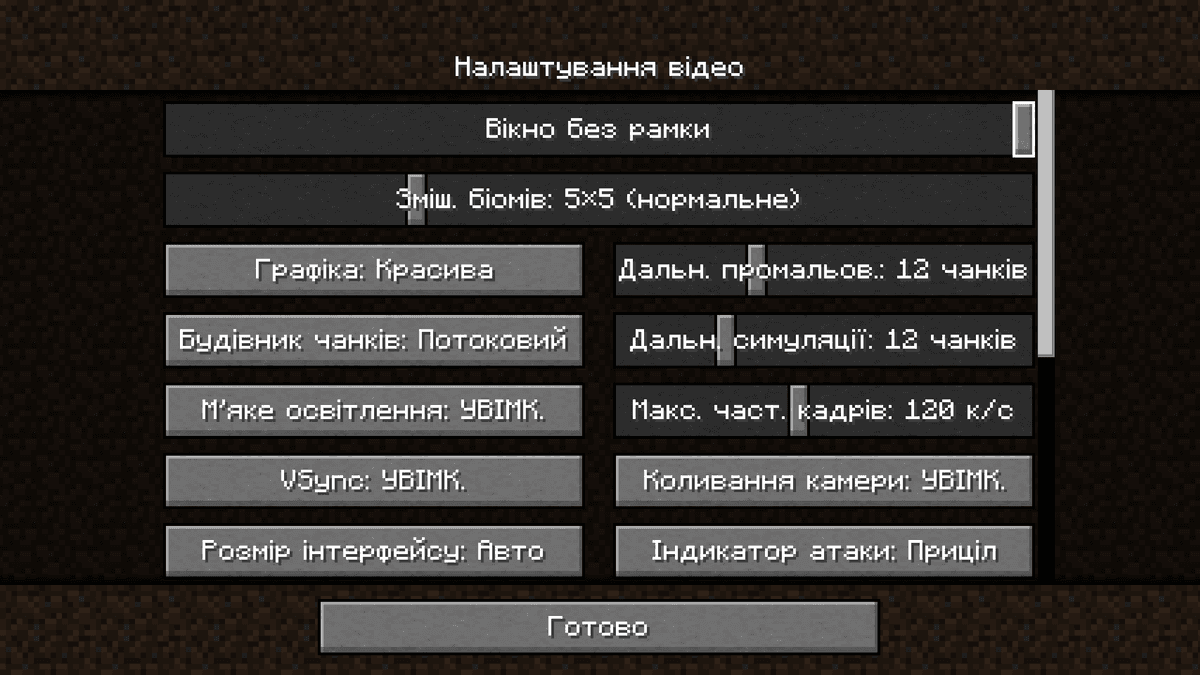
The Borderless Window option in the Video Settings menu.
Caveats
On macOS the mod is disabled by default: the window cannot be placed over the global menu bar at the top of the screen, and macOS's own fullscreen mechanism already doesn't minimize the game on Alt+Tab. You can force-enable it, but the top strip will remain covered.
For non-standard scenarios — a fixed window size for stream recording, pinning to a specific display in a multi-monitor setup — the file .minecraft/config/borderlessmining.json has the corresponding fields. Most players won't need these settings: the default behavior is to fully fill the current monitor.
Config
The file .minecraft/config/borderlessmining.json stores all of the mod's settings. Manual editing is mostly needed for multi-monitor scenarios and fixed window sizes.
| Parameter | What it does |
| enableBorderlessFullscreen | Master switch. false leaves the mod installed but inactive. |
| addToVanillaVideoSettings | false removes the Borderless Windowed entry from the vanilla video settings menu. |
| enableMacOS | Enables the mod on macOS. Disabled by default because the window can't cover the global menu bar. |
| forceWindowMonitor | Index of the monitor the window should appear on. -1 — auto-select; 0, 1, 2… — a specific display, in the order assigned by the system. |
| customWindowDimensions .enabled | true enables a fixed window size instead of filling the whole monitor. |
| customWindowDimensions.x / y / width / height | Coordinates of the top-left corner and the window size, in pixels. Only take effect when enabled: true . |
| customWindowDimensions.useMonitorCoordinates | true — coordinates relative to the monitor's corner; false — relative to the corner of the combined desktop, which lets the window span multiple screens. |
enableBorderlessFullscreen
Master switch. false leaves the mod installed but inactive.
addToVanillaVideoSettings
false removes the Borderless Windowed entry from the vanilla video settings menu.
Enables the mod on macOS. Disabled by default because the window can't cover the global menu bar.
Index of the monitor the window should appear on. -1 — auto-select; 0, 1, 2… — a specific display, in the order assigned by the system.
customWindowDimensions.enabled
true enables a fixed window size instead of filling the whole monitor.
customWindowDimensions.x / y / width / height
Coordinates of the top-left corner and the window size, in pixels. Only take effect when enabled: true.
customWindowDimensions.useMonitorCoordinates
true — coordinates relative to the monitor's corner; false — relative to the corner of the combined desktop, which lets the window span multiple screens.
Conclusion
Borderless Mining gives you instant switching between Minecraft and other programs without the game minimizing. Compared to vanilla F11, transitions become smooth, but you lose the benefit of exclusive fullscreen mode, where the OS can allocate more graphics buffer resources to the game. It's a good fit for streamers and players with two or more monitors; on a single-monitor setup the difference is barely noticeable.
Installation
A typical installation takes about 5 minutes. The flow is the same; only the loader and the matching build differ.
- Install a mod loader (Forge, Fabric or NeoForge) that matches your Minecraft version.
- Download the mod file (.jar) built for that same version.
- Place the .jar into your .minecraft/mods folder.
- Launch Minecraft with the modded profile and check the mod loads in-game.